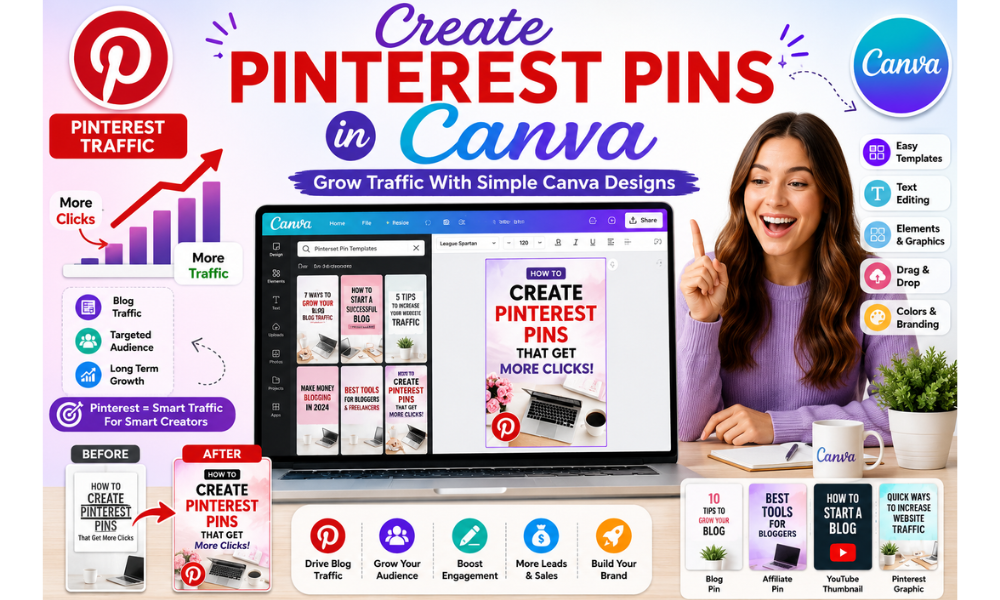
How to Create Pinterest Pins in Canva is becoming an important skill for bloggers, freelancers, and content creators who want to grow their online traffic through visual content.
Today, Pinterest is not just a social media platform. It works like a visual search engine where people discover ideas, blog posts, products, tutorials, and inspiration every day.
That is why Pinterest pins matter so much.
A well-designed Pinterest pin can help bring visitors to your blog, increase content visibility, and improve long-term traffic growth.
Even beginners can start getting attention online by creating clean and attractive pins.
Before learning Canva, many beginners feel confused about graphic design because professional software often looks complicated and difficult to understand.
But Canva changed that experience completely.
Its beginner-friendly design system makes it easy to create Pinterest graphics using simple drag-and-drop tools, ready-made templates, and clean editing features.
One of the biggest advantages of Canva and Pinterest together is that beginners can start creating professional-looking content without needing advanced design skills or expensive software.
For many people starting their digital skills journey, learning how to create Pinterest pins in Canva can become the first practical step toward blogging, freelancing, affiliate marketing,
and online content creation.
What Is a Pinterest Pin?
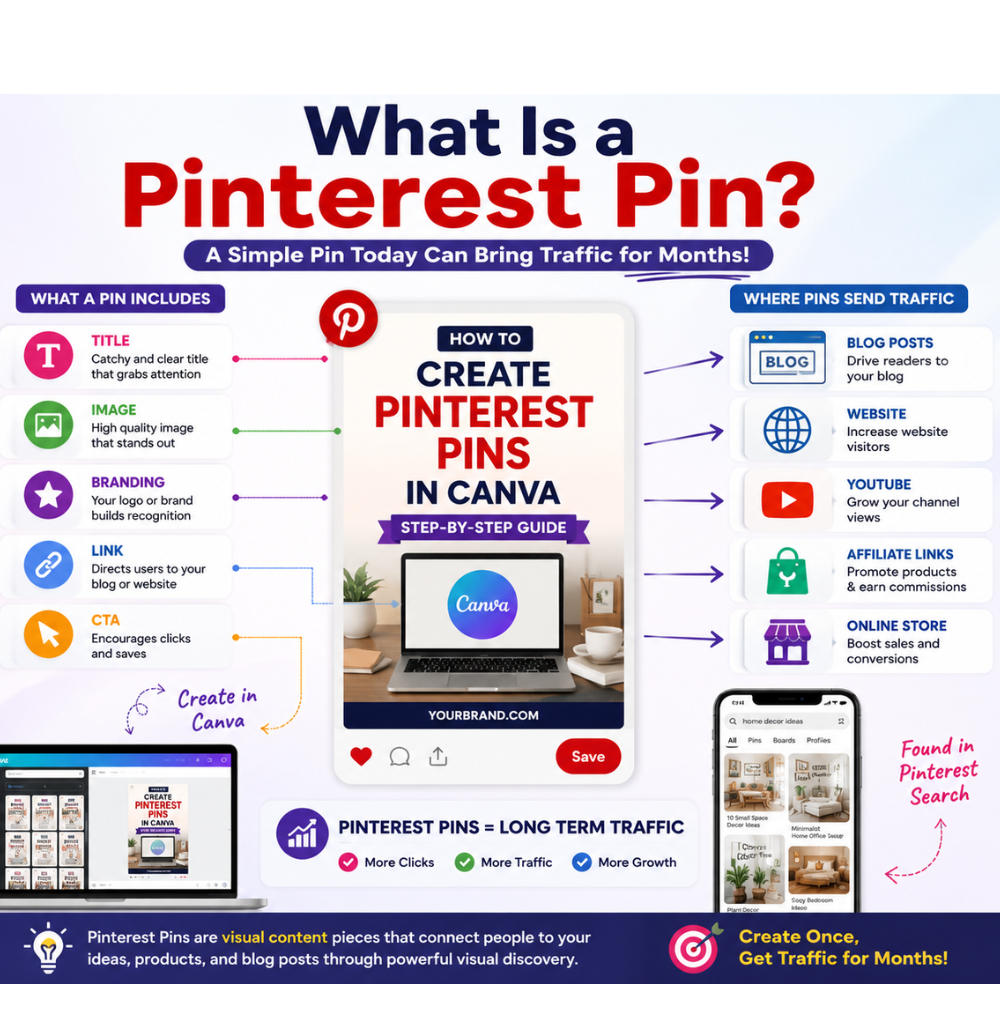
How to create Pinterest pins in Canva becomes much easier when beginners first understand what a Pinterest pin actually is
and why it plays such an important role in Pinterest marketing and blog traffic.
A Pinterest pin is a visual piece of content that people see while scrolling on Pinterest.
It usually includes an image, title text, branding, and a link connected to a blog post, website, product, video, or online content.
Unlike traditional social media posts that disappear quickly, Pinterest pins can continue bringing traffic for months or even years.
That is one of the biggest reasons why bloggers, affiliate marketers, freelancers, and content creators use Pinterest as a long-term traffic platform.
When someone clicks on a Pinterest pin, they are usually taken to a website, blog article, product page, or tutorial.
This makes Pinterest different from many other social media platforms because its main purpose is content discovery and search-based traffic.
A good Pinterest pin is designed to grab attention quickly.
Clean layouts, readable fonts, attractive colors, and clear titles help users understand the topic within seconds while scrolling through Pinterest feeds.
For beginners entering the digital world, Pinterest pins are one of the easiest ways to combine creativity, visual design, blogging, and online marketing together.
Today, many creators use Canva to design Pinterest pins because it allows beginners to create professional-looking graphics using ready-made templates,
drag-and-drop tools, and beginner-friendly editing features without advanced design experience.
Why Pinterest Pins Are Important for Traffic
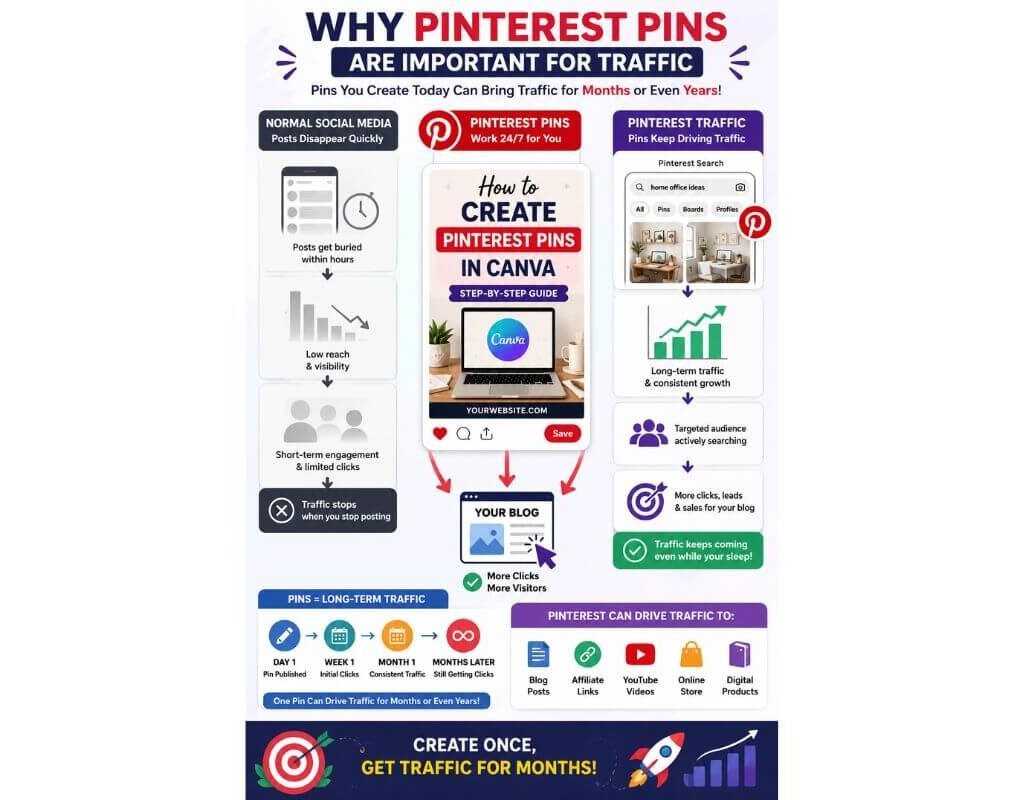
How to create Pinterest pins in Canva is an important skill because Pinterest pins can become a powerful source of long-term
website traffic for bloggers, freelancers, affiliate marketers, and online businesses.
Unlike many social media platforms where posts disappear quickly after a few hours, Pinterest works more like a visual search engine.
People search for ideas, tutorials, inspiration, products, and educational content every day. This gives Pinterest pins a longer life compared to normal social media posts.
When users search for topics on Pinterest, attractive pins appear in the search results and smart feed.
If a pin has a strong title, clean design, readable text, and clear visuals, people are more likely to click on it and visit the linked website or blog post.
This is why Pinterest traffic is valuable.
A single well-designed Pinterest pin can continue sending visitors to a website for weeks, months, or sometimes even years.
Many bloggers and content creators use Pinterest to increase blog traffic without depending only on Google search rankings.
Pinterest pins are also important because they help content reach new audiences.
Even beginners with small websites or new blogs can start getting visibility if their pins are visually attractive and optimized with the right keywords.
Another reason Pinterest pins matter is that they support content marketing and brand growth.
Businesses use Pinterest graphics to promote blog articles, products, YouTube videos, affiliate content, digital services, and online stores.
For beginners learning digital skills, Pinterest can become one of the easiest platforms for building organic traffic through visual content creation.
By learning how to create Pinterest pins in Canva, beginners can combine creativity, blogging, design, and marketing into one practical online skill.
Today, many successful bloggers and freelancers treat Pinterest pin design as an important part of their content strategy because good pins help increase clicks, saves, visibility, and website growth over time.
Pinterest Pin Size and Dimensions
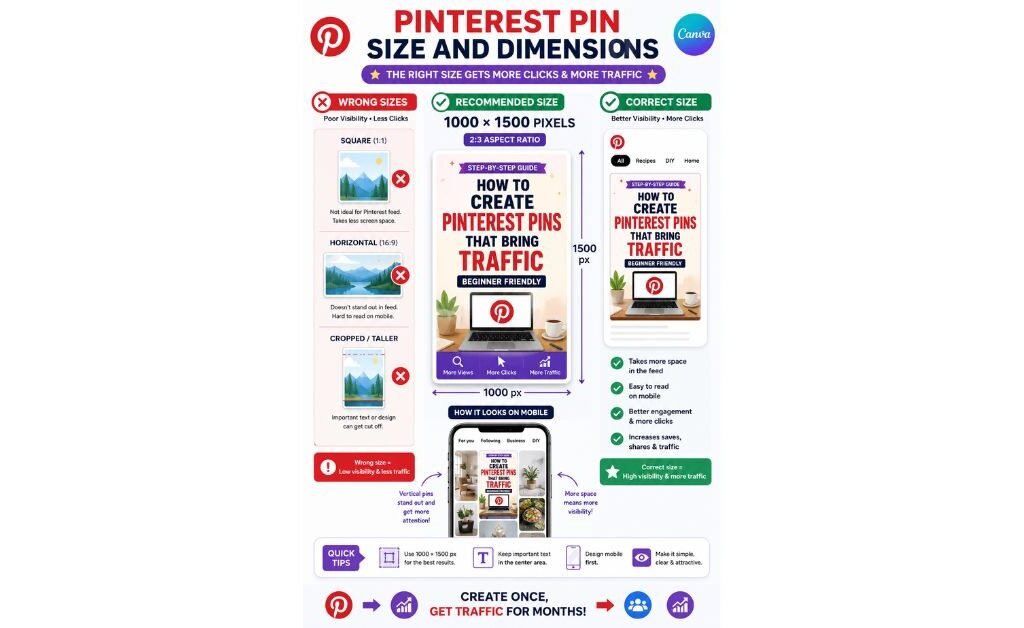
How to create Pinterest pins in Canva correctly also means understanding the right Pinterest pin size and dimensions before starting the design process.
Choosing the correct size helps pins look clean, professional, and mobile-friendly on Pinterest feeds.
Pinterest mainly uses vertical images because vertical pins take up more space on the screen and attract more attention while users scroll.
This increases the chances of getting clicks, saves, and engagement.
The recommended Pinterest pin size is:
1000 × 1500 pixels
This uses a 2:3 aspect ratio, which is considered the best format for Pinterest graphics and blog traffic pins.
Many beginners make the mistake of creating square or horizontal designs that do not perform well on Pinterest.
Vertical designs usually work better because they are easier to notice in the Pinterest smart feed and search results.
When creating Pinterest pins in Canva, beginners can simply search for “Pinterest Pin” inside Canva templates.
Canva automatically provides the correct dimensions, making the design process much easier for new users.
Using the right Pinterest dimensions also helps improve readability.
Titles, images, and branding elements appear cleaner and more balanced when the pin follows Pinterest’s recommended size guidelines.
Another important reason to use proper pin dimensions is mobile optimization.
Most Pinterest users browse the platform on mobile devices, so pins should be easy to read and visually clear on smaller screens.
For bloggers, freelancers, affiliate marketers, and content creators, understanding Pinterest pin size is an important part of creating professional Pinterest graphics that attract attention
and increase website traffic over time.
How to Create Pinterest Pins in Canva Step by Step
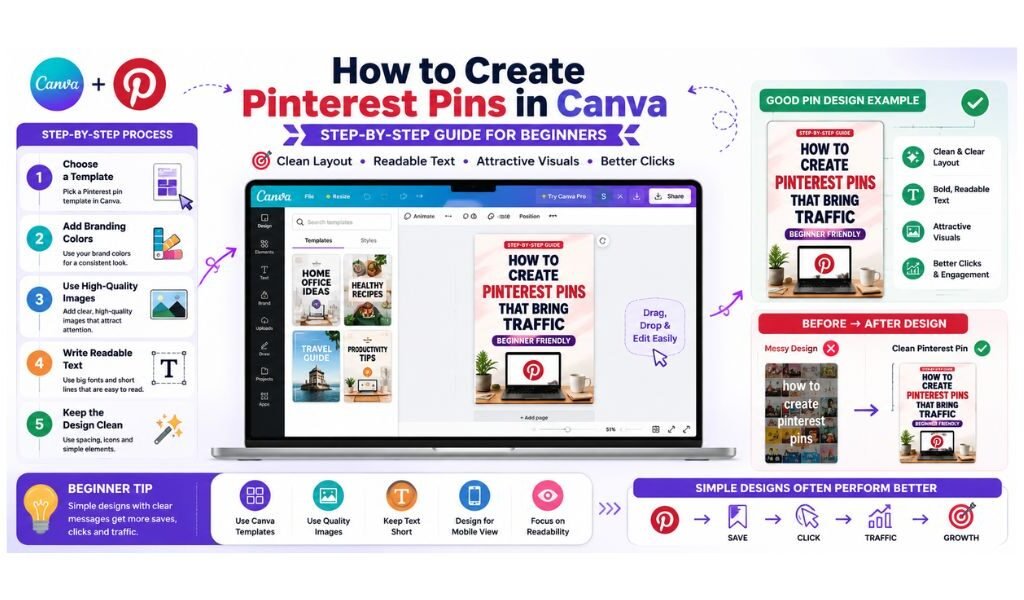
How to create Pinterest pins in Canva becomes much easier when beginners follow a simple step-by-step design process instead of randomly placing text, colors, and images together.
Many successful Pinterest creators do not make complicated designs.
They focus on clean layouts, readable text, attractive visuals, and clear branding that quickly grab attention while users scroll through Pinterest feeds.
Canva makes this process beginner-friendly because it provides ready-made Pinterest templates, drag-and-drop tools,
and easy editing features that help users create professional-looking Pinterest graphics without advanced design experience.
By following these simple steps, beginners can start creating Pinterest pins that look clean, attractive, and more likely to receive clicks, saves, and traffic.
Choose a Template
The first step in creating Pinterest pins in Canva is choosing the right Pinterest template.
Canva already provides thousands of Pinterest pin templates designed with the correct dimensions and layout structure.
Beginners should start with simple and clean templates instead of overly complicated designs. A good template helps save time and gives the design a professional foundation.
When selecting a template, it is important to choose one that matches the topic, niche, or audience.
Bloggers, affiliate marketers, freelancers, and business owners often use different visual styles depending on their content goals.
Add Branding Colors
Colors play an important role in Pinterest design because they affect attention, readability, and brand identity.
Beginners should use a limited color palette instead of adding too many bright colors together.
Consistent branding colors help Pinterest pins look more professional and recognizable over time.
Many content creators use two or three main colors repeatedly across their pins to build visual consistency.
Soft contrast, balanced color combinations, and clean backgrounds usually perform better than cluttered or overly aggressive color schemes.
Use High-Quality Images
mages are one of the first things users notice on Pinterest. High-quality visuals make Pinterest pins look cleaner, more trustworthy, and more clickable.
Blurry or low-quality images can reduce engagement and make the pin look unprofessional.
Canva provides many stock photos and visual elements that beginners can easily use inside their designs.
Choosing images related to the topic also improves content relevance.
For example, blogging pins should use blogging visuals, while digital skills content should use laptops, workspaces, design tools, or creative setups.
Write Short Readable Text
Pinterest users scroll quickly, so titles should be easy to read within seconds.
Beginners should avoid writing long paragraphs on Pinterest pins.
Short headlines with clear keywords usually perform much better.
Large readable fonts, strong contrast, and simple wording help users instantly understand the topic of the pin.
Good Pinterest text focuses on curiosity, clarity, and value instead of adding too much information in one design.
Keep the Design Clean
One of the biggest Pinterest design mistakes beginners make is overcrowding the pin with too many elements.
Clean spacing and simple layouts often create more professional results.
A clean Pinterest design helps viewers focus on the main message without confusion.
Balanced spacing, readable fonts, organized sections, and limited design elements improve both visual quality and user engagement.
Successful Pinterest pins are usually simple, visually organized, mobile-friendly, and easy to understand at first glance.
For beginners learning Pinterest marketing and Canva design, simplicity is often more effective than overcomplicated graphics.
Common Pinterest Pin Design Mistakes
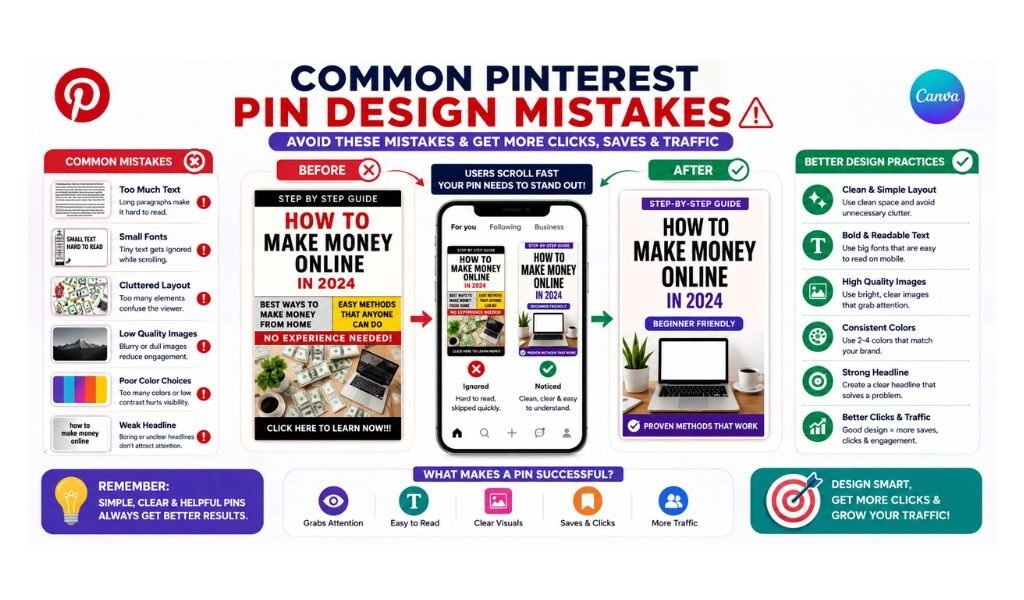
How to create Pinterest pins in Canva successfully also means understanding the common Pinterest pin design mistakes that many beginners make during the content creation process.
A Pinterest pin may look visually attractive at first, but small design mistakes can reduce clicks, saves, engagement, and overall traffic performance.
That is why learning proper Pinterest design principles is just as important as learning Canva tools.
One of the most common beginner mistakes is adding too much text to a Pinterest pin.
Pinterest users scroll quickly, so long paragraphs or crowded layouts often make the design difficult to read.
Clear headlines and short readable text usually perform much better.
Another common mistake is using hard-to-read fonts.
Many beginners choose stylish decorative fonts that look creative but become unreadable on mobile devices.
Simple and bold fonts help viewers understand the message faster while scrolling through Pinterest feeds.
Using too many colors is also a major Pinterest design mistake.
Bright random colors can make the design feel cluttered and unprofessional.
Successful Pinterest creators usually use a clean color palette with balanced contrast and consistent branding.
Some beginners also ignore image quality. Low-quality or blurry images can reduce trust and make Pinterest graphics look weak.
High-quality visuals help pins appear cleaner, more professional, and more clickable.
Another mistake is copying random Pinterest templates without customization.
Canva templates are helpful for learning, but adding personal branding, unique titles, and proper design balance helps create stronger Pinterest content.
Many beginners also forget about mobile readability.
Since most Pinterest users browse on mobile phones, small text and overloaded layouts can reduce engagement.
Pinterest pins should always remain clean, readable, and visually organized on smaller screens.
For bloggers, freelancers, affiliate marketers, and content creators, avoiding these common Pinterest pin mistakes can help improve visibility, clicks, saves,
and long-term Pinterest traffic growth.
Best Pinterest Pin Design Tips for Beginners
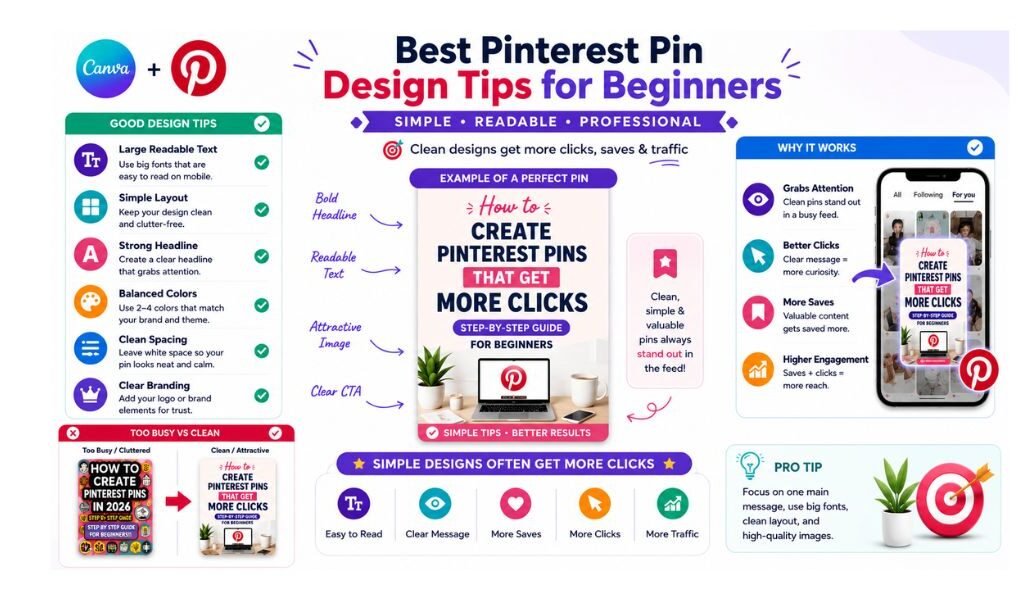
How to create Pinterest pins in Canva becomes much easier for beginners when they follow simple Pinterest design tips instead of trying to create overly complicated graphics.
Successful Pinterest pins are usually clean, visually balanced, easy to read, and designed to grab attention quickly while users scroll through Pinterest feeds.
Small improvements in layout, colors, text placement, and branding can make a big difference in pin performance.
One of the best Pinterest design tips for beginners is to keep the design simple.
Too many elements, colors, fonts, or images can make the pin look crowded and confusing.
Clean layouts often perform better because they help users focus on the main message.
Using large readable text is another important Pinterest strategy.
Most users browse Pinterest on mobile devices, so titles should remain clear and easy to understand even on smaller screens.
Bold headlines and simple fonts usually improve visibility and clicks.
Beginners should also use high-quality images related to the topic of the content.
Strong visuals help Pinterest graphics look more professional and trustworthy.
Canva provides many beginner-friendly templates and stock images that make this process easier.
Another helpful tip is maintaining consistent branding colors and style.
Using similar colors, fonts, and layouts across multiple Pinterest pins helps build visual identity and makes content more recognizable over time.
Pinterest creators should also focus on curiosity-driven titles.
Clear and engaging headlines encourage users to stop scrolling and click on the pin.
Titles that solve problems, answer questions, or promise value often perform better on Pinterest.
Whitespace and spacing are also very important in Pinterest design.
Balanced spacing between text, images, and design elements creates a cleaner and more professional appearance.
For beginners learning Pinterest marketing and Canva design, the goal is not perfection.
The goal is creating simple, attractive, and useful Pinterest pins consistently while improving design skills step by step.
How Pinterest Pins Help Bloggers and Freelancers
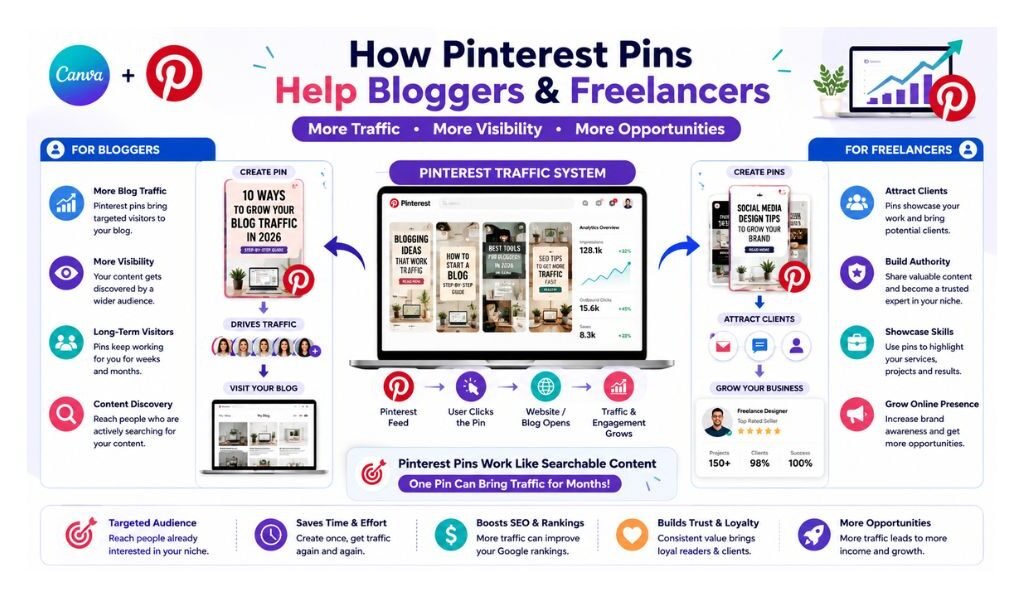
How to create Pinterest pins in Canva is an important skill for bloggers and freelancers because Pinterest pins can help increase visibility, attract targeted traffic,
and grow online opportunities over time.
Many beginners think Pinterest is only for inspiration and ideas, but today
Pinterest has become a powerful traffic platform for bloggers, affiliate marketers, content creators, and online businesses.
For bloggers, Pinterest pins help bring visitors directly to blog articles.
When someone clicks on a Pinterest graphic, they are usually taken to a website or blog post.
This allows creators to increase blog traffic through visually attractive content instead of depending only on Google search rankings.
Pinterest traffic is also long-term.
Unlike many social media posts that disappear quickly, Pinterest pins can continue appearing in search results and smart feeds for months or even years.
This gives bloggers a chance to build evergreen traffic through consistent pin creation.
For freelancers, Pinterest pin design can become a valuable digital skill and online service.
Many businesses, bloggers, coaches, affiliate marketers, and online stores need professional Pinterest graphics to promote their content and products.
This creates freelancing opportunities for beginners who learn Canva design and Pinterest marketing together.
Many freelancers offer Pinterest pin design services on platforms like Fiverr and Upwork because businesses want visually engaging pins that attract clicks and improve visibility.
Pinterest also helps personal branding.
Creators can use Pinterest graphics to promote blogs, YouTube videos, digital products, affiliate content, social media pages, and educational tutorials.
Another important advantage is that Pinterest combines creativity with marketing.
Beginners not only improve graphic design skills but also learn visual communication, branding, content strategy, and audience targeting.
For bloggers and freelancers starting their digital journey,
learning how to create Pinterest pins in Canva can become one of the most practical skills for building traffic, visibility, and long-term online growth.
Final Thoughts
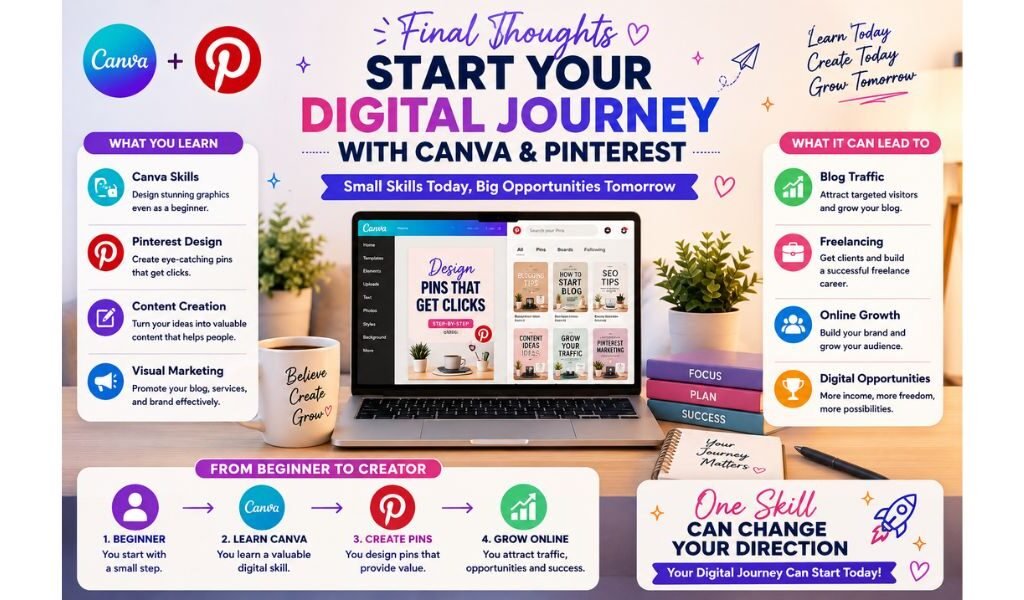
How to create Pinterest pins in Canva is more than just learning graphic design.
It is a practical digital skill that helps beginners combine creativity, blogging, visual marketing, and online content creation in one simple workflow.
For many beginners, Pinterest pin design becomes the first step toward understanding how visual content can attract traffic, increase visibility, and support long-term online growth.
The best part is that Canva makes this process beginner-friendly.
Instead of struggling with complicated software, users can start creating professional-looking Pinterest graphics using templates, drag-and-drop tools, and simple editing features.
Whether you are a blogger, freelancer, affiliate marketer, small business owner, or content creator, learning
Pinterest pin design can help you build stronger branding and improve your content strategy over time.
Remember, successful Pinterest pins are not always the most complicated designs.
Clean layouts, readable text, balanced colors, and consistent branding often perform much better than overloaded graphics.
The goal is not perfection.
The goal is creating useful, visually attractive, and beginner-friendly Pinterest content consistently while improving your design skills step by step.
As you continue practicing Canva and Pinterest design, you will slowly develop a better understanding of visual communication, audience attention, branding, and content marketing.
If you want to start practicing Pinterest pin design, you can explore Canva here:
Pingback: What Is Modal Fabric? Top Fabric Types Every Tailor Should Know in 2026
Pingback: WhatsApp Business Design: Create Graphics in Canva
Pingback: How Canva Helps Fiverr Freelancers | 7 Beginner Tips
Pingback: Creating a Simple Canva Portfolio: 7 Proven Tips
Pingback: What Is Pinterest A Beginner's Guide to Website Growth100%