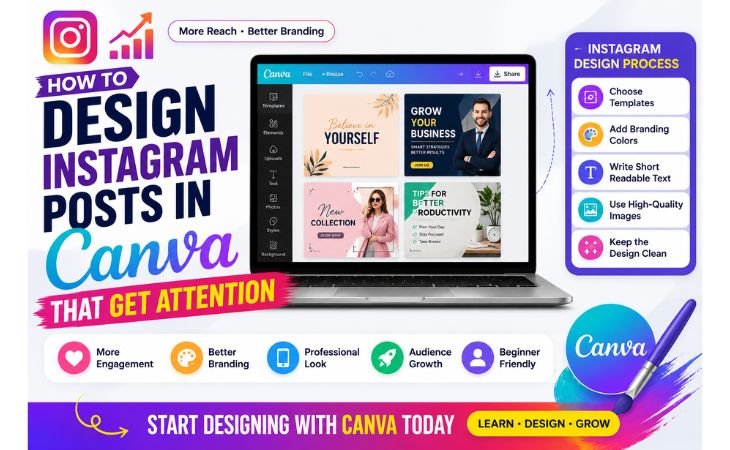
How to design Instagram posts in Canva is becoming an important digital skill for bloggers, freelancers, content creators, and online businesses.
Instagram is one of the most powerful visual platforms where attractive content often gets more attention than plain text.
That is why professional-looking Instagram graphics can help improve branding, engagement, and online visibility.
Many beginners think creating social media graphics requires advanced graphic design knowledge or expensive software.
But Canva has made the process much easier with ready-made templates, drag-and-drop editing tools, and beginner-friendly design features that help users create clean Instagram posts quickly.
Learning Instagram post design is not only useful for social media content.
It also helps beginners understand branding, visual communication, color balance, typography, and content presentation.
These skills are valuable for blogging, freelancing, personal branding, affiliate marketing, and digital content creation.
One of the biggest advantages of Canva is simplicity.
Beginners can easily customize templates, add branding colors, upload images, and create professional Instagram graphics without struggling with complicated software.
This simple Canva workflow saves time and allows creators to focus more on content quality and audience engagement.
Whether you want to grow an Instagram page, promote products, build a personal brand, or improve social media marketing,
Canva provides an easy starting point for creating modern and visually attractive Instagram posts.
What Makes an Instagram Post Attractive?
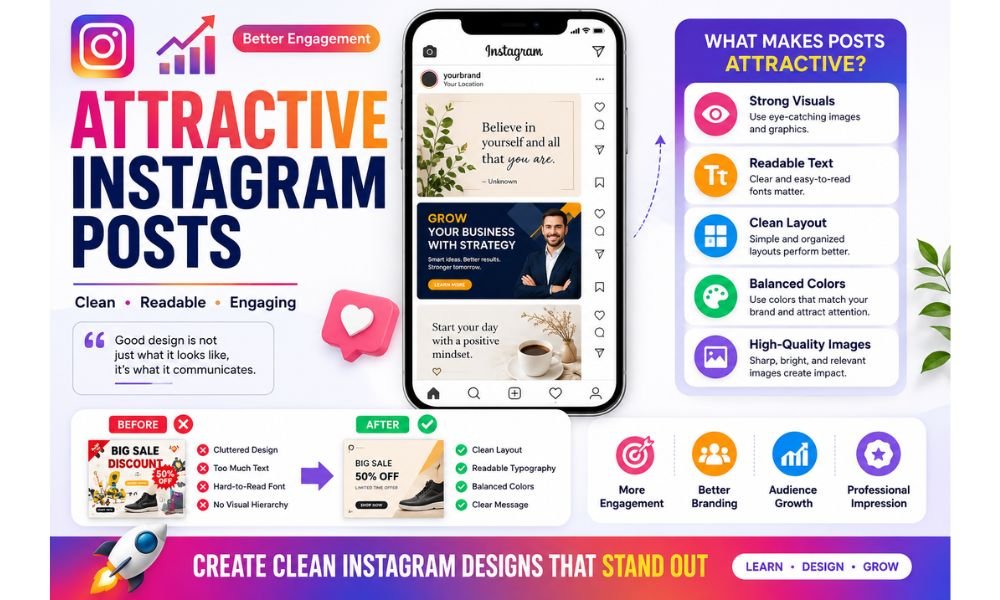
How to design Instagram posts in Canva becomes much easier when beginners understand what makes Instagram content visually attractive and engaging.
On Instagram, users scroll very quickly, so a post must capture attention within the first few seconds.
Strong visuals, clean layouts, and readable text often perform better than crowded or confusing designs.
One of the most important elements of an attractive Instagram post is visual clarity.
Simple designs with balanced spacing help users focus on the main message instead of getting distracted by too many elements.
Clean Instagram graphics usually create a more professional and trustworthy impression.
Color selection also plays a major role in Instagram branding.
Using consistent branding colors helps create visual identity and makes content more recognizable over time.
Many successful creators and businesses use similar color palettes, fonts, and design styles to maintain consistency across their Instagram posts.
Readable typography is another important factor in social media design.
Text should be large, clear, and easy to understand, especially for mobile users.
Complicated fonts or excessive text can reduce engagement because users may quickly lose interest while scrolling.
High-quality images also improve Instagram content performance.
Blurry or low-quality visuals can make even good content look unprofessional.
Canva provides beginner-friendly templates, stock images, and editing tools that help creators design more polished Instagram graphics.
An attractive Instagram post is not only about beauty.
It should also communicate a clear message, connect with the audience emotionally, and encourage engagement through likes, saves, shares, or comments.
For beginners learning Canva and Instagram design, the goal is creating clean, visually balanced, and audience-focused content that stands out naturally in the Instagram feed.
Instagram Post Sizes in Canva

How to design Instagram posts in Canva becomes more effective when beginners understand the correct Instagram post sizes and dimensions.
Using the right Canva dimensions helps Instagram graphics look cleaner, more professional, and properly optimized for mobile viewing.
Instagram is a highly visual platform, and incorrect image sizes can cause designs to appear cropped, blurry, stretched, or poorly aligned.
That is why choosing the correct Canva template size is an important part of social media design and visual branding.
The most common Instagram post size is:
1080 × 1080 pixels
This square format works well for:
regular Instagram posts
quotes
promotional graphics
branding content
educational posts
Another popular Instagram format is the vertical portrait size:
1080 × 1350 pixels
This size usually performs better because it takes up more space in the Instagram feed and attracts more user attention while scrolling.
For Instagram Stories and Reels covers, creators often use:
1080 × 1920 pixels
This vertical format is designed for full-screen mobile viewing and is commonly used for stories, reels, and short-form content.
One of Canva’s biggest advantages is that it already provides ready-made Instagram templates with correct dimensions.
Beginners can simply select an Instagram post template and customize it without worrying about technical design settings.
Understanding Instagram sizes also improves visual consistency.
When all posts use proper dimensions, branding layouts, typography, spacing, and images appear more balanced and professional across the Instagram profile.
For beginners learning Instagram content creation, using the correct Canva dimensions is an important first step toward creating visually attractive, mobile-friendly, a
nd engagement-focused Instagram graphics.
How to Design Instagram Posts Step by Step
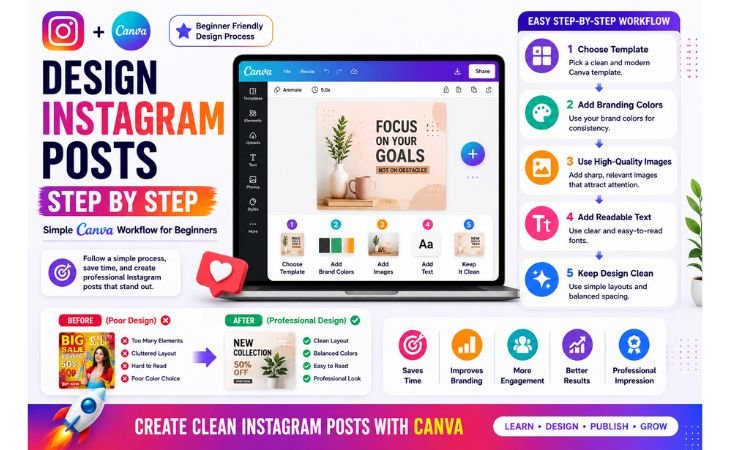
How to design Instagram posts in Canva becomes much easier when beginners follow a simple step-by-step workflow instead of trying to create complicated designs without structure.
A clean process helps creators save time, improve branding consistency, and design more professional social media graphics.
Successful Instagram posts usually combine strong visuals, readable text, balanced colors, and simple layouts that quickly attract attention in the Instagram feed.
Canva makes this process beginner-friendly with ready-made templates and drag-and-drop editing tools.
Choose a Template
One of the easiest ways to start Instagram post design is by choosing a Canva template.
Canva provides thousands of ready-made Instagram templates for quotes, business posts, educational content, promotions, fashion graphics, and personal branding.
Templates help beginners understand spacing, typography, layout structure, and visual hierarchy without starting from a blank page.
Instead of creating everything manually, users can simply customize existing templates according to their content style.
Add Branding Colors
Branding colors play an important role in visual consistency and audience recognition.
Using the same colors across Instagram posts helps creators build a stronger identity and create a more professional-looking Instagram profile.
Many successful brands and content creators use consistent color palettes, fonts, and design styles so their audience can recognize their content immediately while scrolling.
Use High-Quality Images
High-quality visuals improve Instagram engagement and make social media graphics look more professional.
Blurry or low-resolution images can reduce trust and make content appear less attractive.
Canva provides stock photos, image editing tools, filters, and design elements that help beginners create cleaner and more visually appealing Instagram posts.
Write Short Readable Text
Instagram users usually scroll quickly, so text should remain short, clear, and easy to read. Large readable fonts often perform better than complicated typography styles.
Strong headlines and short supporting text help users understand the message quickly and improve audience engagement.
Keep the Design Clean
One of the most important Instagram design tips is simplicity. Too many colors, fonts, stickers, or design elements can make a post look cluttered and confusing.
Clean layouts with balanced spacing usually create a more modern and professional appearance.
Simple Instagram graphics often attract more attention because they are easier to understand visually.
For beginners learning Canva and Instagram content creation, following a simple step-by-step workflow helps build confidence
and makes the design process faster, easier, and more effective over time.
Instagram Design Mistakes Beginners Make
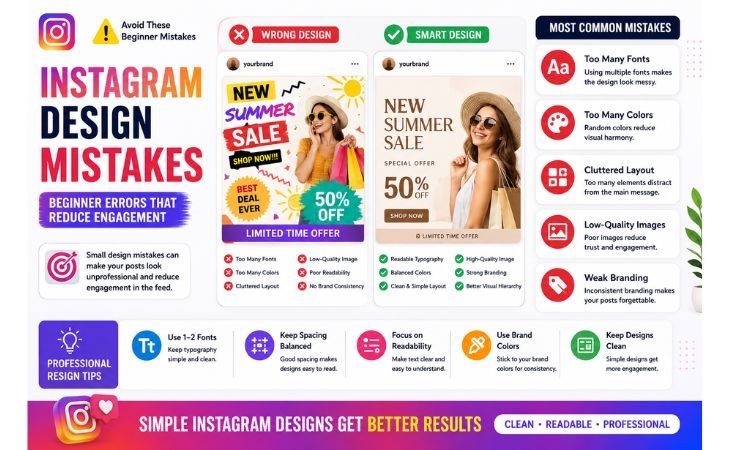
How to design Instagram posts in Canva becomes more effective when beginners understand the common Instagram design mistakes that can reduce engagement
and make social media content look unprofessional.
Many new creators focus only on adding colors and effects without understanding visual balance, readability, and branding consistency.
One of the biggest beginner mistakes is using too many fonts in a single Instagram post.
Different typography styles can make the design look messy and confusing.
Most professional Instagram graphics use one or two clean fonts to maintain readability and visual consistency.
Another common mistake is overcrowding the design with too much text, stickers, icons, or decorative elements.
Instagram users scroll quickly, so complicated layouts often fail to capture attention.
Clean and simple Instagram posts usually perform better because the message is easier to understand.
Poor color selection is also a major problem for beginners.
Using random bright colors without balance can make content look unprofessional.
Strong Instagram branding usually depends on consistent color palettes that match the creator’s style or business identity.
Low-quality images can also reduce trust and engagement.
Blurry visuals, stretched photos, or poor image cropping can make even valuable content look weak.
Canva helps beginners improve visual quality through templates, stock photos, filters, and easy editing tools.
Another mistake many beginners make is ignoring mobile readability.
Since most Instagram users browse on mobile devices, text should remain large, bold, and easy to read.
Tiny fonts and crowded layouts often reduce engagement because users cannot quickly understand the content.
Some creators also copy random trending designs without developing their own branding style.
While inspiration is useful, building a recognizable visual identity helps creators stand out and improve long-term audience recognition.
For beginners learning Instagram content creation, avoiding these common Canva and Instagram design mistakes can lead to cleaner graphics, stronger branding, better audience engagement,
and more professional-looking social media content.
Tips for Better Instagram Branding
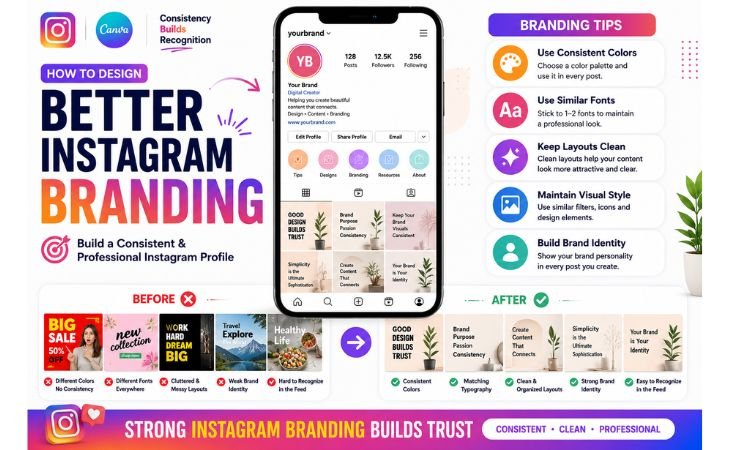
How to design Instagram posts in Canva becomes more powerful when creators focus on strong Instagram branding instead of posting random designs without consistency.
Good branding helps people recognize your content quickly and creates a more professional appearance across your Instagram profile.
One of the best Instagram branding tips is using consistent colors in every post.
When creators repeatedly use similar color palettes, their content becomes easier to recognize while users scroll through the Instagram feed.
Consistent branding also helps build trust and visual identity over time.
Typography consistency is equally important for social media branding.
Using the same font styles across Instagram graphics creates a cleaner and more organized look.
Most successful brands and creators avoid using too many different fonts because simple typography often looks more professional and readable.
Another important branding strategy is maintaining a consistent design style.
Some creators use minimal layouts, while others prefer bold educational content or aesthetic visual themes.
The key is making your Instagram posts visually connected so the overall profile looks balanced and recognizable.
High-quality visuals also improve Instagram branding.
Clear images, proper spacing, and clean layouts make content look more polished and trustworthy.
Canva helps beginners maintain this consistency through customizable templates, branding kits, and easy drag-and-drop design tools.
Creators should also focus on content clarity.
Strong Instagram branding is not only about colors and graphics.
It is also about delivering a clear message that matches the audience’s interests and expectations.
If you also want to improve your Pinterest content strategy, you can read our previous guide here:

Learning both Pinterest and Instagram design together can help beginners build stronger digital skills,
improve content marketing strategies, and create more professional visual branding across multiple platforms.
Final Thoughts
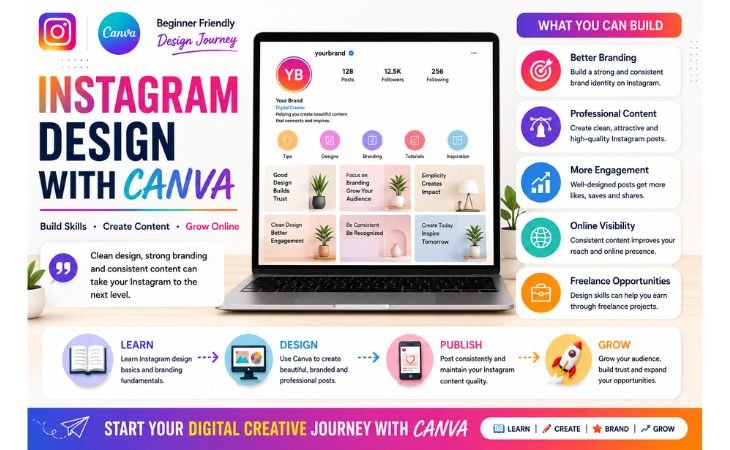
How to design Instagram posts in Canva is more than just learning social media graphics.
It is a practical digital skill that helps beginners improve visual branding, audience engagement, content presentation, and online visibility across different platforms.
Today, Instagram has become one of the most competitive visual platforms, and attractive content often creates the first impression for businesses, freelancers, bloggers, and content creators.
That is why learning clean and professional Instagram design can become an important part of building a strong online presence.
The good news is that Canva makes this process beginner-friendly.
Instead of struggling with complicated design software, creators can use ready-made templates, simple drag-and-drop tools, branding features,
and easy editing options to design modern Instagram posts more efficiently.
Remember, successful Instagram branding is not about using too many effects or complicated layouts.
In most cases, simple designs with readable text, balanced colors, clean spacing, and clear messaging perform much better.
As you continue practicing Instagram post design, you will slowly improve your understanding of visual communication, branding psychology, audience attention, and content marketing.
These skills are valuable not only for Instagram but also for blogging, Pinterest marketing, freelancing, and digital content creation.
The goal is not perfection.
The goal is creating consistent, visually attractive, and audience-focused content while improving your design skills step by step.
If you want to start designing Instagram posts, you can explore Canva here:
Pingback: How to Design YouTube Thumbnails in Canva for Beginners