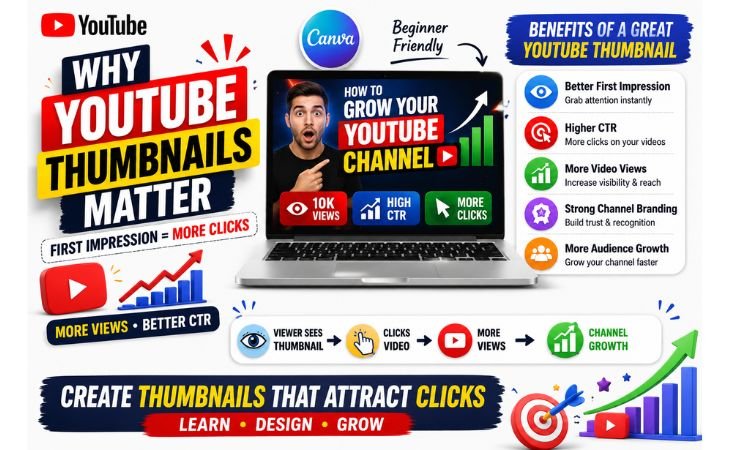
How to design YouTube thumbnails in Canva is one of the most valuable digital skills for content creators, bloggers, freelancers, and beginner YouTubers.
Before viewers watch your video, they see your thumbnail. In many cases, the thumbnail creates the first impression and influences whether someone clicks on your content or scrolls past it.
A well-designed YouTube thumbnail can significantly improve your Click-Through Rate (CTR), increase video visibility, and help attract more viewers.
Even high-quality videos can struggle to get views if the thumbnail fails to capture attention.
That is why successful YouTube creators invest time in creating eye-catching thumbnails that communicate a clear message and spark curiosity.
Many beginners assume that professional thumbnail design requires advanced graphic design skills or expensive software.
However, Canva has made the process much easier.
With ready-made YouTube thumbnail templates, drag-and-drop editing tools, customizable graphics,
and beginner-friendly features, anyone can create professional-looking thumbnails without prior design experience.
Learning YouTube thumbnail design also helps creators understand visual marketing, audience psychology, color contrast, typography, and content presentation.
These skills are useful not only for YouTube but also for blogging, social media marketing, personal branding, and freelance design projects.
One of Canva’s biggest advantages is simplicity.
Beginners can quickly customize templates, add images, adjust colors, create bold text, and design attractive thumbnails in just a few minutes.
This simple workflow allows creators to focus more on content creation while maintaining a professional visual appearance.
Whether you are starting a YouTube channel, promoting educational content, building a personal brand, or growing an online business, Canva provides an easy
and effective way to create thumbnails that attract attention and encourage more clicks.
What Makes a YouTube Thumbnail Clickable?
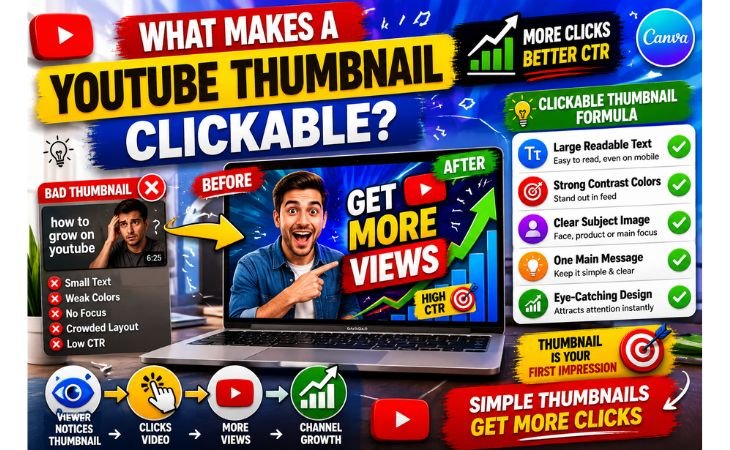
How to design YouTube thumbnails in Canva becomes much easier when creators understand what makes a thumbnail clickable and attention-grabbing.
On YouTube, viewers make decisions within seconds, and a thumbnail often determines whether they click on a video or continue scrolling.
A strong thumbnail can improve Click-Through Rate (CTR), increase video visibility, and attract more viewers to your content.
One of the most important elements of a clickable YouTube thumbnail is visual clarity.
Viewers should immediately understand the topic of the video without reading too much text.
Clean layouts, clear subject focus, and simple design structures usually perform better than crowded thumbnails filled with unnecessary elements.
Color contrast also plays a major role in thumbnail design. Bright, high-contrast colors help thumbnails stand out in YouTube search results, suggested videos, and mobile feeds.
Canva provides beginner-friendly design tools that make it easy to create visually striking thumbnails using balanced color combinations.
Readable typography is another key factor.
Thumbnail text should be large, bold, and easy to read, even on small mobile screens.
Most successful YouTube creators use short headlines with powerful keywords instead of long sentences that are difficult to read quickly.
Strong images can also improve thumbnail performance.
A clear subject image, expressive facial reaction, product image, or relevant visual element helps create curiosity and emotional connection.
High-quality visuals often increase engagement because they make the content look more professional and trustworthy.
Another important factor is consistency.
Using similar colors, fonts, and design styles across multiple videos helps strengthen channel branding and makes content easier to recognize.
Consistent thumbnail design can improve audience trust and encourage repeat viewers.
A clickable YouTube thumbnail is not just about making something look attractive.
It should communicate value, create curiosity, and clearly represent the video content.
When combined with a strong title, an effective thumbnail becomes one of the most powerful tools for increasing YouTube views and audience engagement.
Best YouTube Thumbnail Sizes in Canva
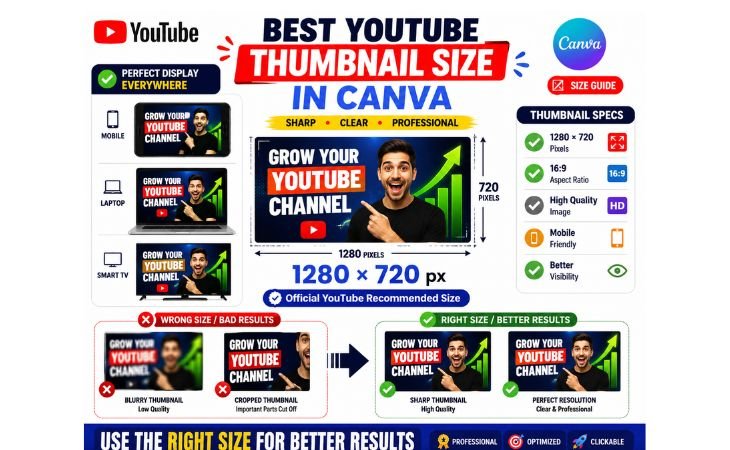
How to design YouTube thumbnails in Canva becomes more effective when creators understand the correct thumbnail sizes and dimensions.
Using the proper YouTube thumbnail size helps graphics appear sharp, professional, and visually appealing across desktops, tablets, smart TVs, and mobile devices.
The recommended YouTube thumbnail size is:
1280 × 720 Pixels
This is the official thumbnail size suggested by YouTube and is widely used by content creators, marketers, and businesses.
The 1280 × 720 format provides enough space for clear images, bold text, and strong visual elements while maintaining excellent image quality.
For the best results, YouTube also recommends:
Minimum width: 640 pixels
Aspect ratio: 16:9
File formats: JPG, PNG, GIF, or WEBP
Maximum file size: 2 MB
Using incorrect dimensions can cause thumbnails to appear blurry, cropped, stretched, or poorly displayed on different devices.
This can reduce Click-Through Rate (CTR) and make videos look less professional.
One of Canva’s biggest advantages is that it provides ready-made YouTube thumbnail templates with the correct dimensions already applied.
Beginners can simply choose a YouTube thumbnail template and start customizing it without worrying about technical design settings.
Correct sizing also improves readability.
When thumbnails are designed using the proper dimensions, text remains clear, images stay sharp, and important design elements remain visible across all screen sizes.
This is especially important because a large percentage of YouTube viewers watch content on mobile devices.
For beginners learning YouTube content creation, using the correct Canva thumbnail size is one of the easiest ways to create professional-looking thumbnails that improve visibility,
support channel branding, and help attract more clicks from potential viewers.
How to Design YouTube Thumbnails Step by Step
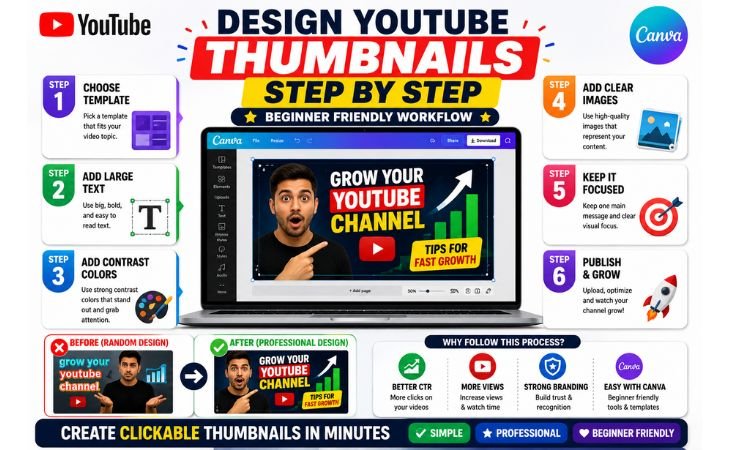
How to design YouTube thumbnails in Canva becomes much easier when creators follow a simple step-by-step workflow instead of creating random designs without a clear structure.
A well-planned thumbnail design process helps improve Click-Through Rate (CTR), strengthen channel branding, and make videos stand out in YouTube search results and recommendations.
Successful YouTube thumbnails usually combine bold text, strong visuals, high color contrast, and a clear focal point that quickly attracts attention.
Canva makes this process beginner-friendly through ready-made templates, drag-and-drop editing tools, and customizable design elements.
Choose a Thumbnail Template
One of the easiest ways to start YouTube thumbnail design is by choosing a Canva template.
Canva provides thousands of professionally designed YouTube thumbnail templates for educational videos, tutorials, gaming content, business channels, technology reviews,
and personal branding.
Templates help beginners understand layout structure, spacing, typography, and visual hierarchy without starting from a blank canvas.
This saves time while creating more professional-looking thumbnails.
Use Large Readable Text
Thumbnail text should be short, bold, and easy to read. Most YouTube viewers decide whether to click a video within a few seconds, so complicated or lengthy text often reduces effectiveness.
Large readable typography helps communicate the video’s main message quickly.
Many successful YouTubers use powerful keywords and short phrases that create curiosity and encourage clicks.
Add High-Contrast Colors
Color contrast plays a major role in YouTube thumbnail performance.
Bright colors and strong visual contrast help thumbnails stand out among competing videos.
Canva allows creators to experiment with color combinations, backgrounds, shadows, and design elements that improve visibility while maintaining a professional appearance.
Use Clear Subject Images
High-quality images make thumbnails more attractive and trustworthy.
A clear face, product image, object, or relevant visual element can help viewers immediately understand the video’s topic.
Strong subject images also create emotional connection and curiosity, which can increase engagement and improve thumbnail performance.
Keep the Design Focused
One of the most common beginner mistakes is adding too many elements to a thumbnail.
Crowded designs can confuse viewers and make the main message difficult to understand.
Simple thumbnails with one clear subject, limited text, balanced spacing, and strong visual focus usually perform better.
A focused design allows viewers to understand the content instantly and makes the thumbnail look more professional.
For beginners learning Canva and YouTube content creation, following this simple workflow can help create clean, eye-catching thumbnails that improve branding, increase visibility,
and attract more clicks over time.
Common YouTube Thumbnail Mistakes
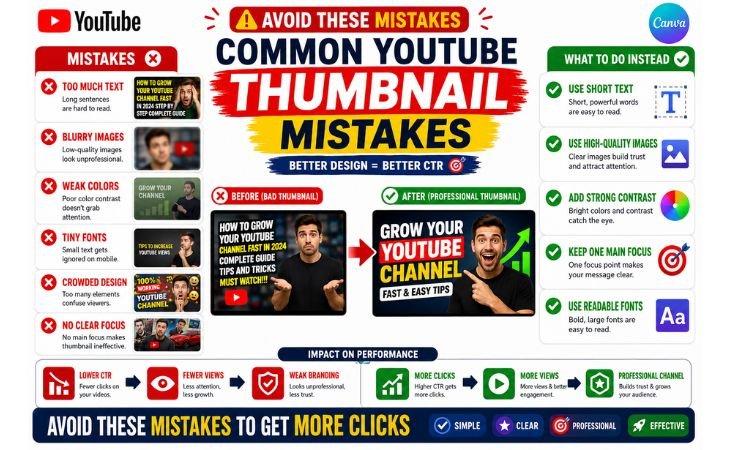
How to design YouTube thumbnails in Canva becomes more effective when creators understand the common mistakes that can reduce Click-Through Rate (CTR) and prevent videos from attracting viewers.
Many beginners focus on adding more design elements, but successful thumbnails are usually simple, clear, and visually focused.
One of the most common YouTube thumbnail mistakes is using too much text.
Viewers often browse YouTube on mobile devices, where long sentences become difficult to read.
Most successful thumbnails use short, powerful words or phrases that quickly communicate the video’s main idea.
Another mistake is using low-quality or blurry images.
Poor image quality can make a video look unprofessional and reduce viewer trust.
High-resolution subject images, clear visuals, and sharp graphics help create stronger first impressions and improve thumbnail performance.
Many beginners also use too many colors, fonts, and design elements in a single thumbnail.
While creativity is important, cluttered designs can confuse viewers and make the main message difficult to understand.
Clean layouts with balanced spacing often perform much better.
Weak color contrast is another common issue.
If text blends into the background or important elements do not stand out, viewers may ignore the thumbnail completely.
Canva provides color tools and templates that help creators build strong visual contrast and improve readability.
Some creators make the mistake of using tiny text that becomes unreadable on mobile screens.
Since a large percentage of YouTube traffic comes from mobile devices, text should remain large, bold, and easy to read at smaller sizes.
Another major mistake is creating misleading thumbnails that do not match the actual video content.
While clickbait may attract initial clicks, it can reduce audience trust and negatively affect viewer retention over time.
Finally, many beginners ignore branding consistency. Using different styles, colors, and fonts for every video can make a channel look disorganized.
Consistent thumbnail branding helps viewers recognize content quickly and strengthens channel identity.
By avoiding these common YouTube thumbnail mistakes, creators can design cleaner, more professional thumbnails that improve visibility, increase engagement,
and encourage more viewers to click on their videos.
Tips for Better Thumbnail CTR
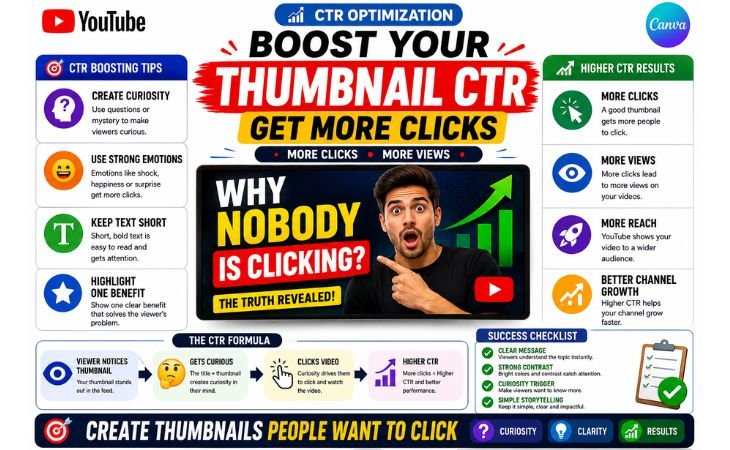
How to design YouTube thumbnails in Canva is not only about creating attractive graphics.
The real goal is improving Click-Through Rate (CTR), which measures how often viewers click on your video after seeing the thumbnail.
A higher CTR can help increase video views, improve YouTube visibility, and support long-term channel growth.
One of the best ways to improve thumbnail CTR is to create curiosity without confusing the viewer.
Successful thumbnails often make people want to learn more while still clearly communicating the video’s topic.
Simple visual storytelling usually performs better than overcrowded designs.
Using short and powerful text can also increase CTR.
Instead of writing long sentences, focus on a few impactful words that highlight the video’s main benefit or create curiosity.
Large readable typography helps viewers understand the message quickly, especially on mobile devices.
Color contrast is another important factor.
Bright backgrounds, bold text, and strong visual separation between elements help thumbnails stand out in YouTube search results and suggested video sections.
Canva provides beginner-friendly design tools that make it easy to create thumbnails with strong visual impact.
Creators should also use a clear focal point.
Whether it is a face, product, object, or important visual element, viewers should immediately know where to look.
Thumbnails with one strong subject often perform better than designs filled with multiple competing elements.
Consistency can also improve CTR over time.
Using similar colors, fonts, and branding styles helps viewers recognize your content quickly and builds trust with your audience.
Many successful YouTube channels maintain a consistent thumbnail style across all videos.
Another effective strategy is studying high-performing thumbnails in your niche.
Observing successful creators can help beginners understand visual trends, audience psychology, and design patterns that attract clicks without copying other channels directly.
Ultimately, better thumbnail CTR comes from combining strong visuals, clear messaging, readable text, curiosity, and consistent branding.
When these elements work together, thumbnails become more effective at attracting viewers and increasing video performance on YouTube.
If you also want to improve your Instagram content design skills, you can read our complete beginner-friendly guide here:
 How to Design Instagram Posts in Canva for Beginners
Final Thoughts
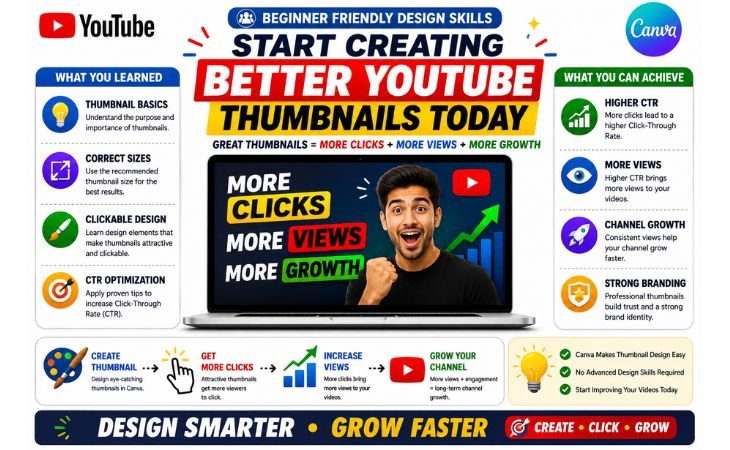
How to design YouTube thumbnails in Canva is one of the most valuable skills for content creators who want to improve video performance, increase Click-Through Rate (CTR),
and build a stronger presence on YouTube.
A well-designed thumbnail can make the difference between a video that gets ignored and a video that attracts clicks and views.
The good news is that creating professional thumbnails is no longer limited to graphic designers.
Canva provides beginner-friendly templates, drag-and-drop editing tools, customizable graphics,
and easy design features that help creators build attractive thumbnails without advanced design experience.
Remember that successful YouTube thumbnails are not about adding more colors, effects, or text.
The most effective thumbnails usually focus on visual clarity, strong contrast, readable typography, high-quality images, and a clear message that encourages viewers to click.
As you continue practicing YouTube thumbnail design, you will also develop valuable skills in visual marketing, branding, audience psychology, and content presentation.
These skills can support not only your YouTube channel but also blogging, social media marketing, freelancing, and personal branding projects.
The goal is not creating a perfect thumbnail every time.
The goal is creating thumbnails that consistently attract attention, communicate value, and encourage viewers to watch your content.
With regular practice and the right Canva workflow, beginners can gradually create more professional thumbnails that improve visibility, strengthen branding,
and contribute to long-term channel growth.
If you want to start creating YouTube thumbnails, you can explore Canva here:
Pingback: WhatsApp Business Design: Create Graphics in Canva